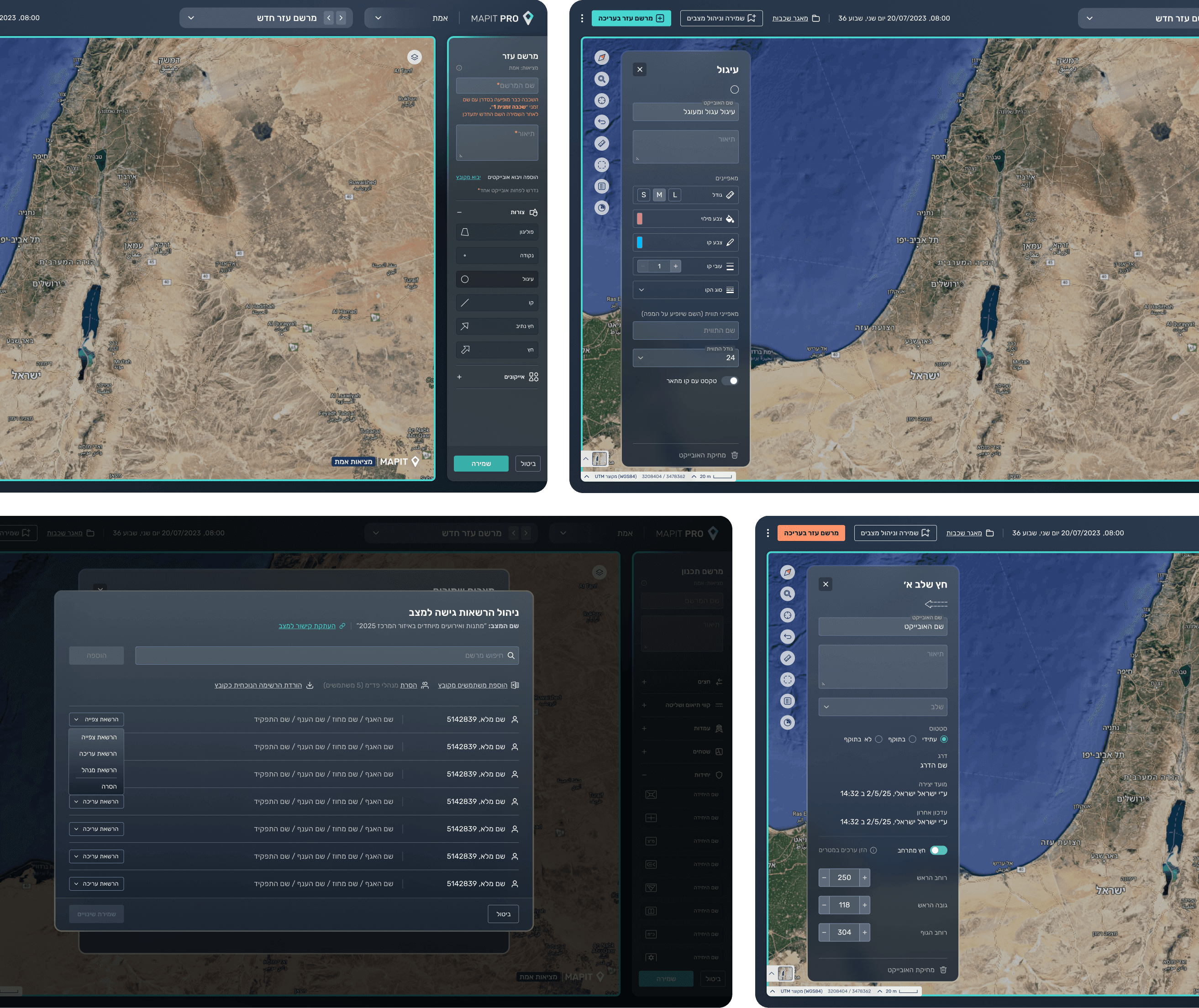
About the program
Design process
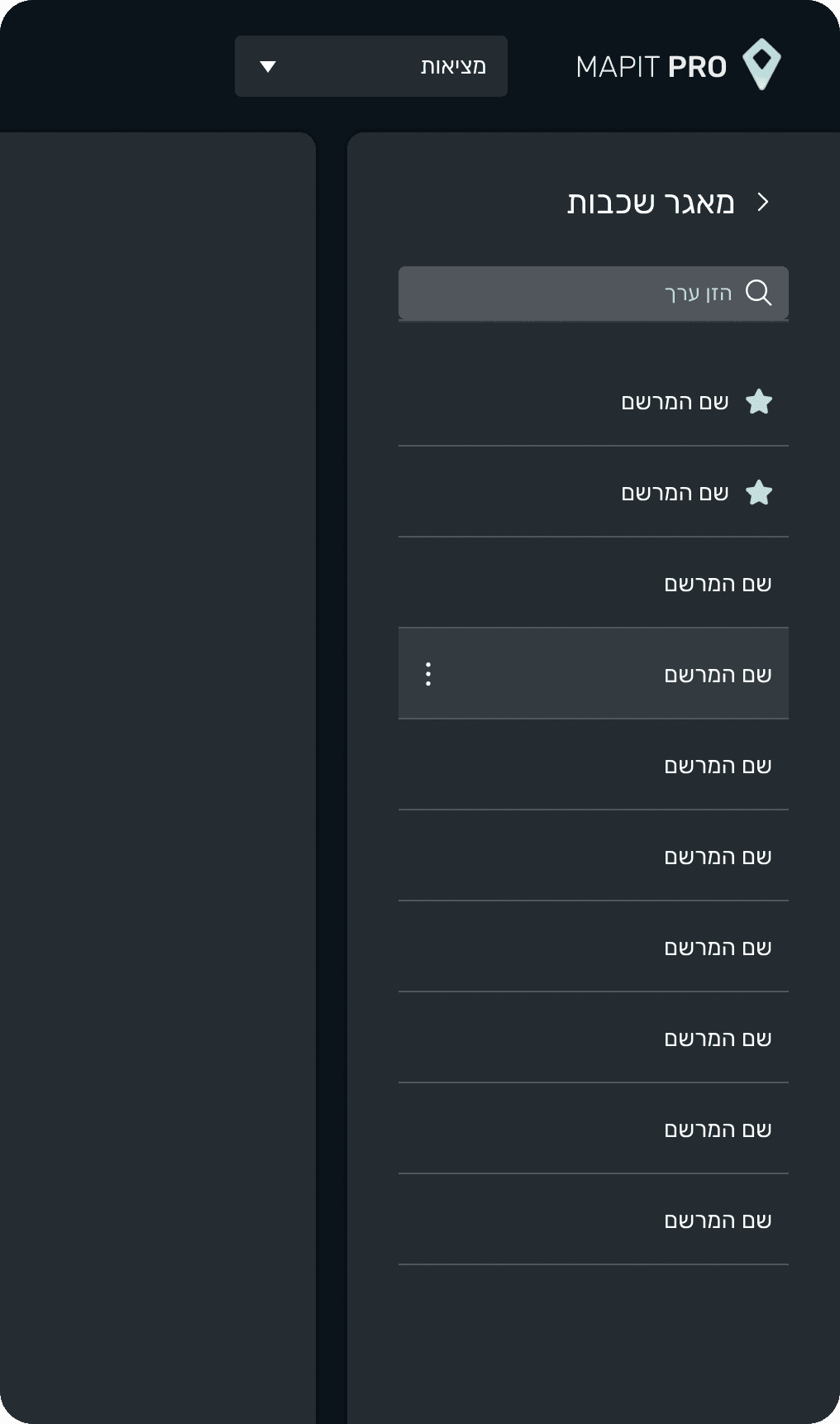
Initial Sketch
At the early stage, following initial research, we created a basic wireframe that explored the combination of drawing tools (shapes, lines, etc.) with a small sidebar for managing layers. This helped us test simplicity versus richer functionality. As research progressed, we realized the system required a more complex and feature rich panel, making this direction less relevant.
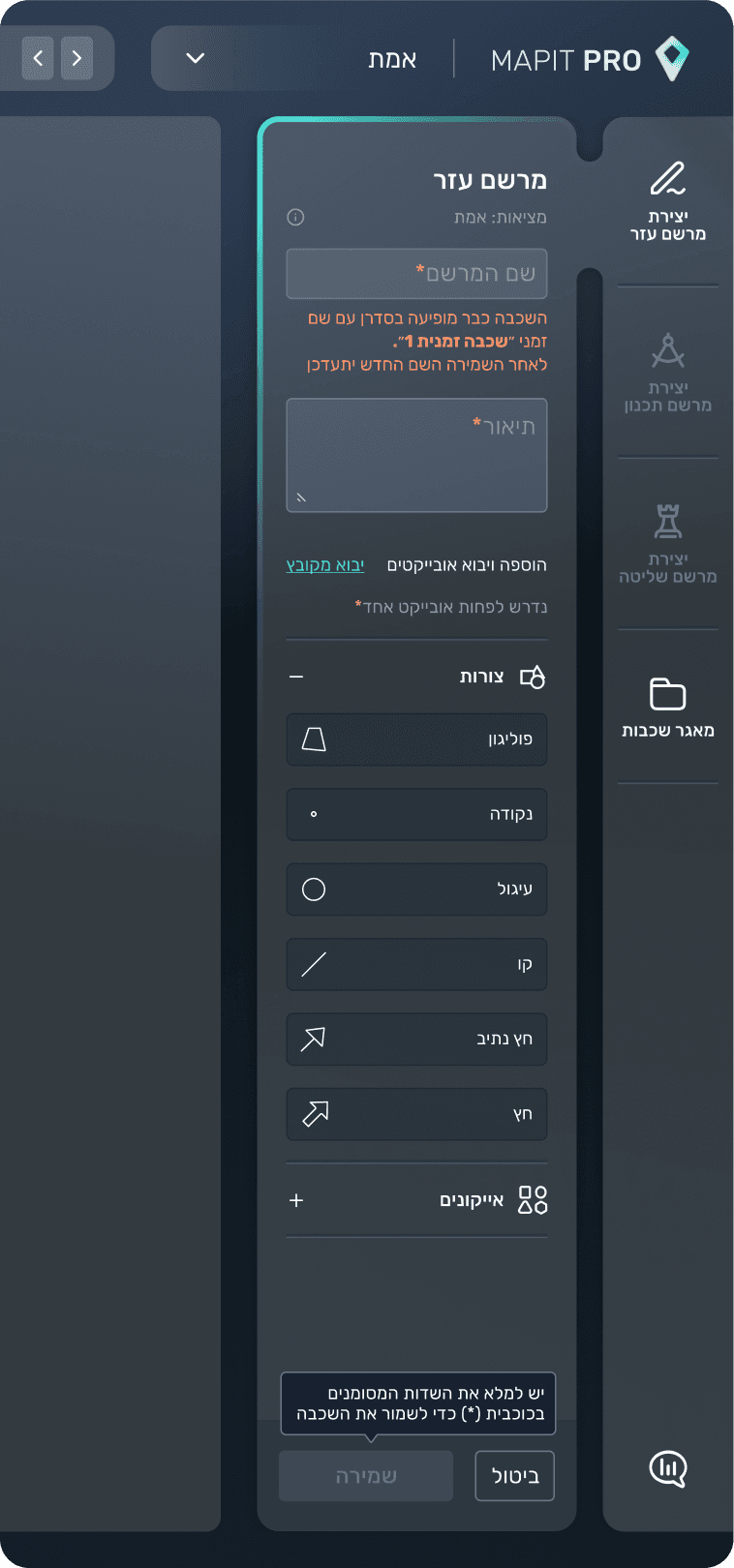
More Advanced Directions
At this stage, we worked on two parallel approaches:
A richer, more structured sidebar designed to remain compact in order to maximize map space.
An alternative navigation path through the top navbar, allowing the sidebar to collapse and free up space.
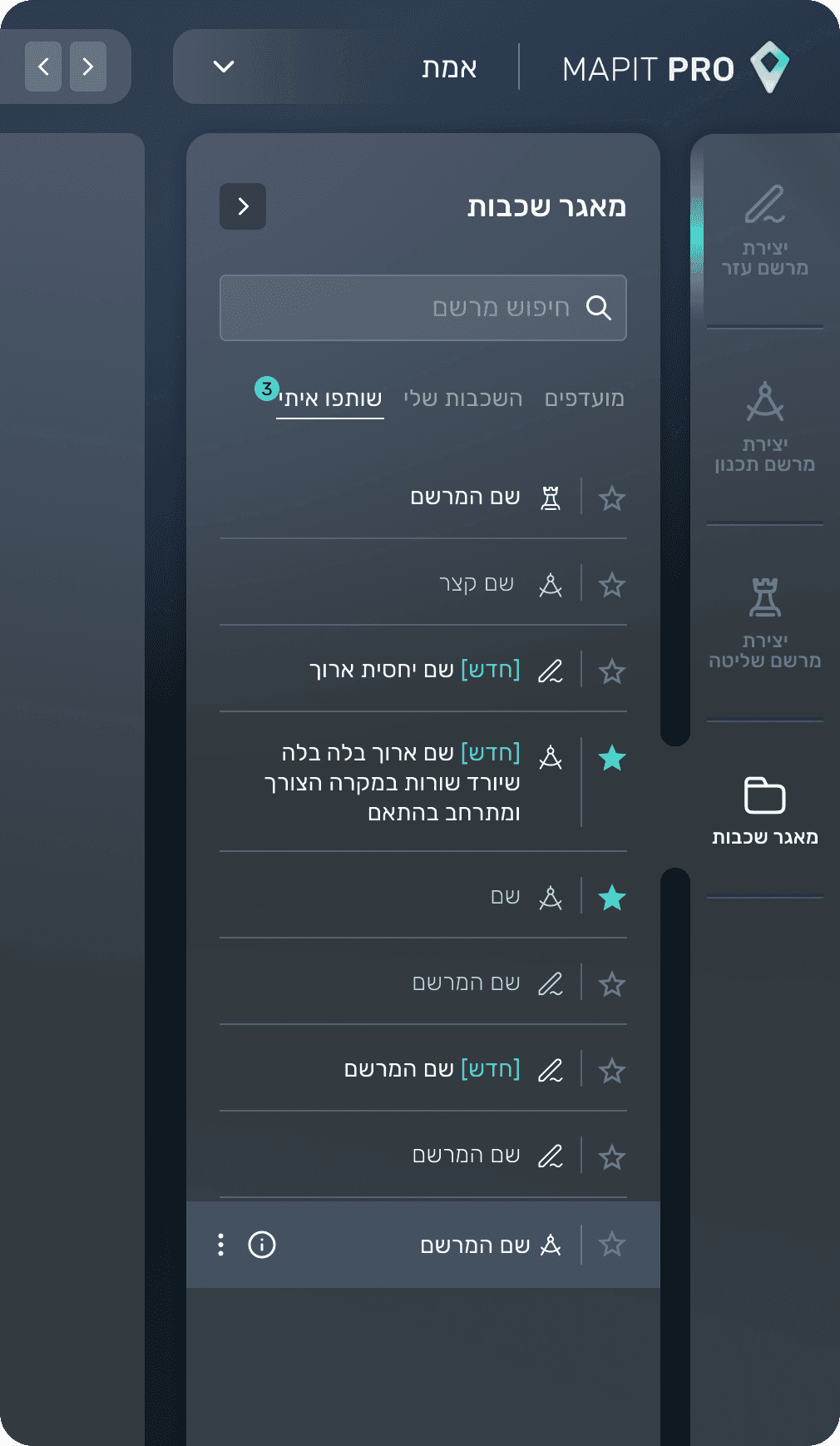
# 2 Final Solution
Through user feedback, we realized the library needed to provide a clearer hierarchy and better readability. We also found that certain actions were repeated frequently, and relying on hover menus slowed users down. To address this, we introduced a more structured panel with surfaced key actions for faster, more intuitive use.
-Boards-
Main flow - Initial sketch, Top Navigation Approach
This video shows the initial sketch where navigation was designed through the top navigation bar, with the intent of leaving more space for the map. The action buttons for creating a new layer and opening the layer library were placed at the top, triggering a right hand sidebar when selected.
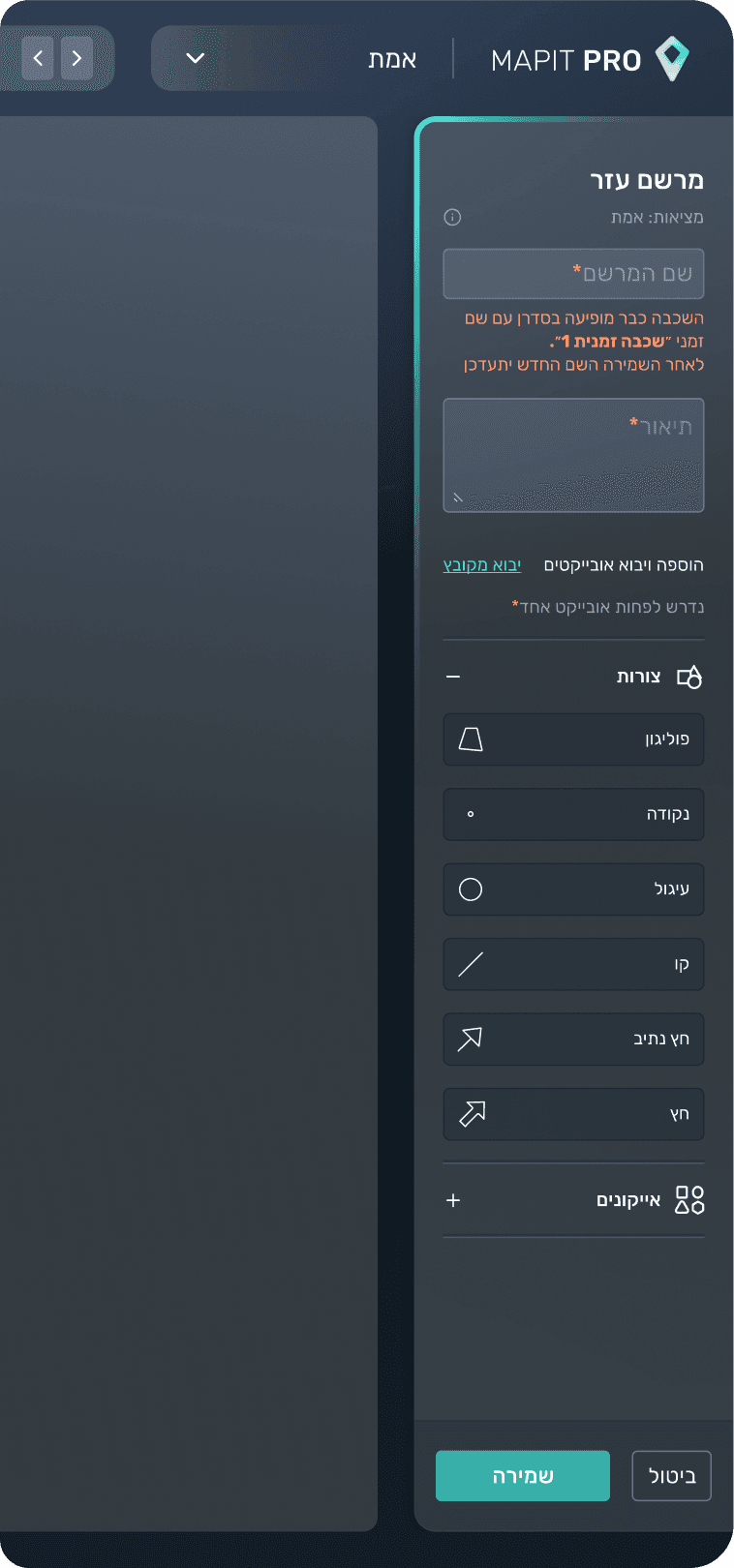
Main flow- Final Design, Full Sidebar Navigation
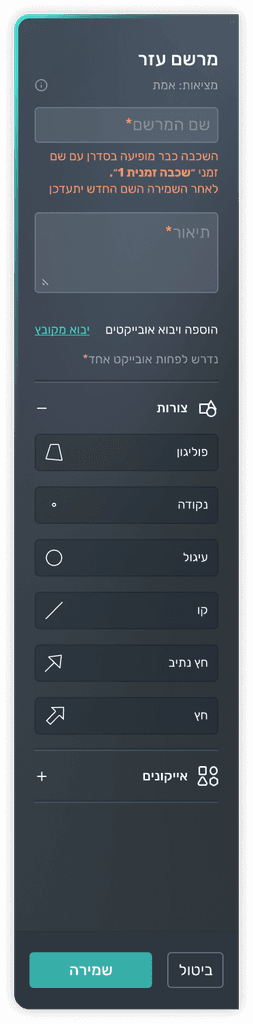
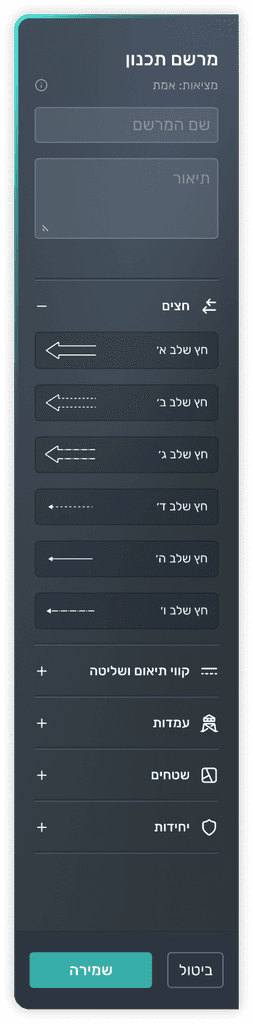
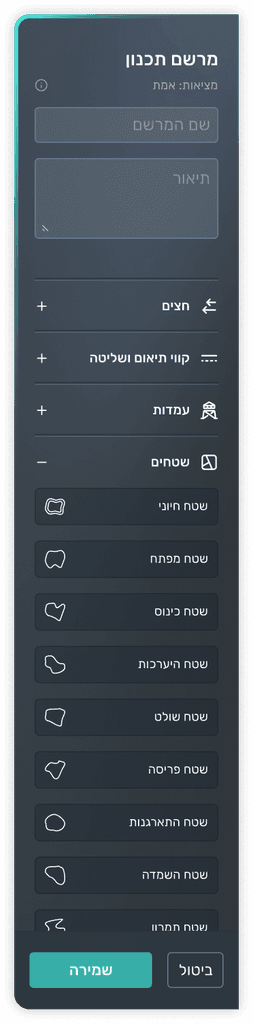
In the chosen design, navigation was consolidated into the sidebar, creating a more efficient and intuitive flow for users. As the system evolved and additional tabs were added, the sidebar structure ensured better clarity and accessibility, while preventing overload on the top navigation bar.
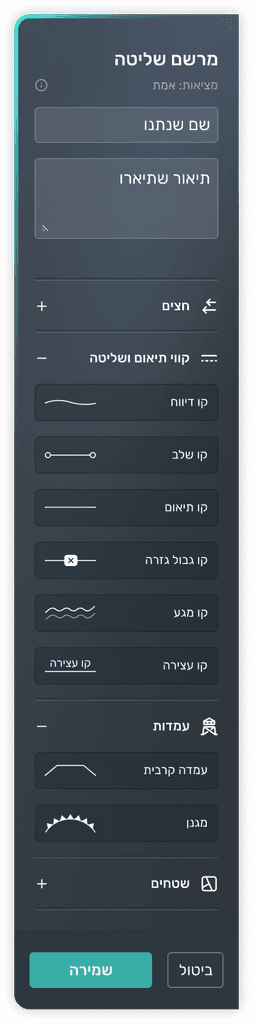
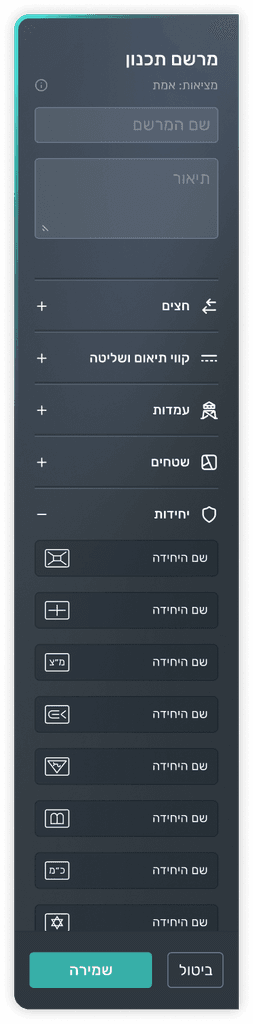
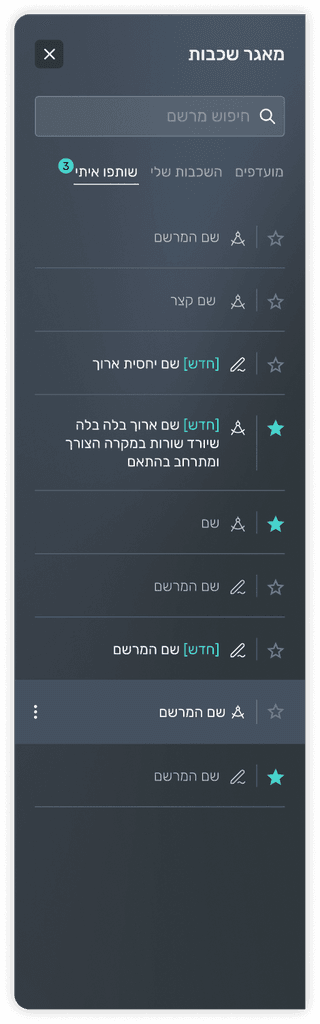
Side bars
User permission flow
This video presents the flow for managing user permission within the system.
It demonstrates how administrators can define access levels by selecting roles, adjusting layer specific permissions, and applying visibility or edit restrictions. The interface is designed to provide clarity and control, ensuring that permissions are intuitive to assign and easy to review at a glance.
# Light mode
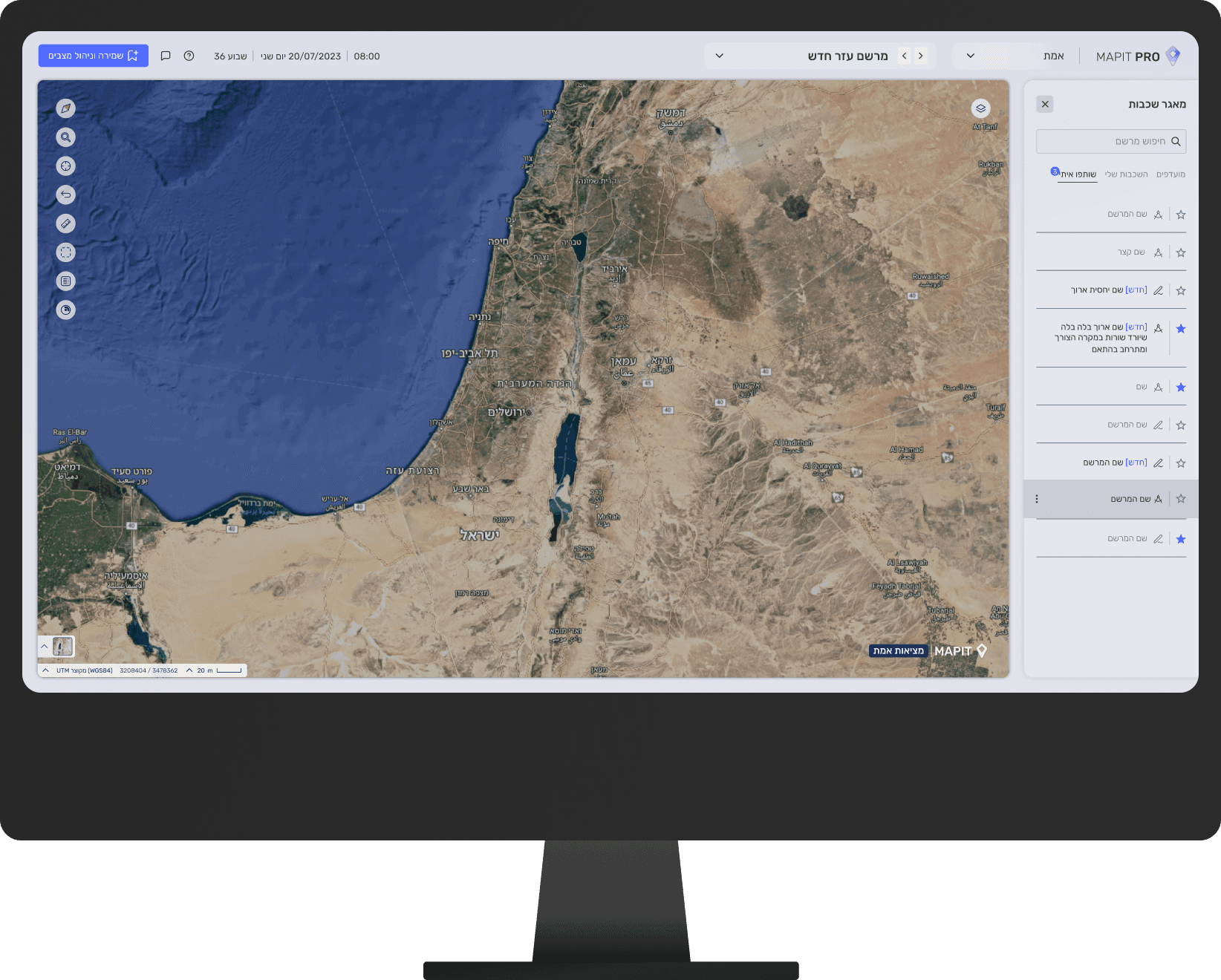
Designed for users who prefer a bright, clean interface during routine system management. This mode enhances visibility and provides a clear, user friendly experience in standard working environments.
Evolving After Production – Operational Planning
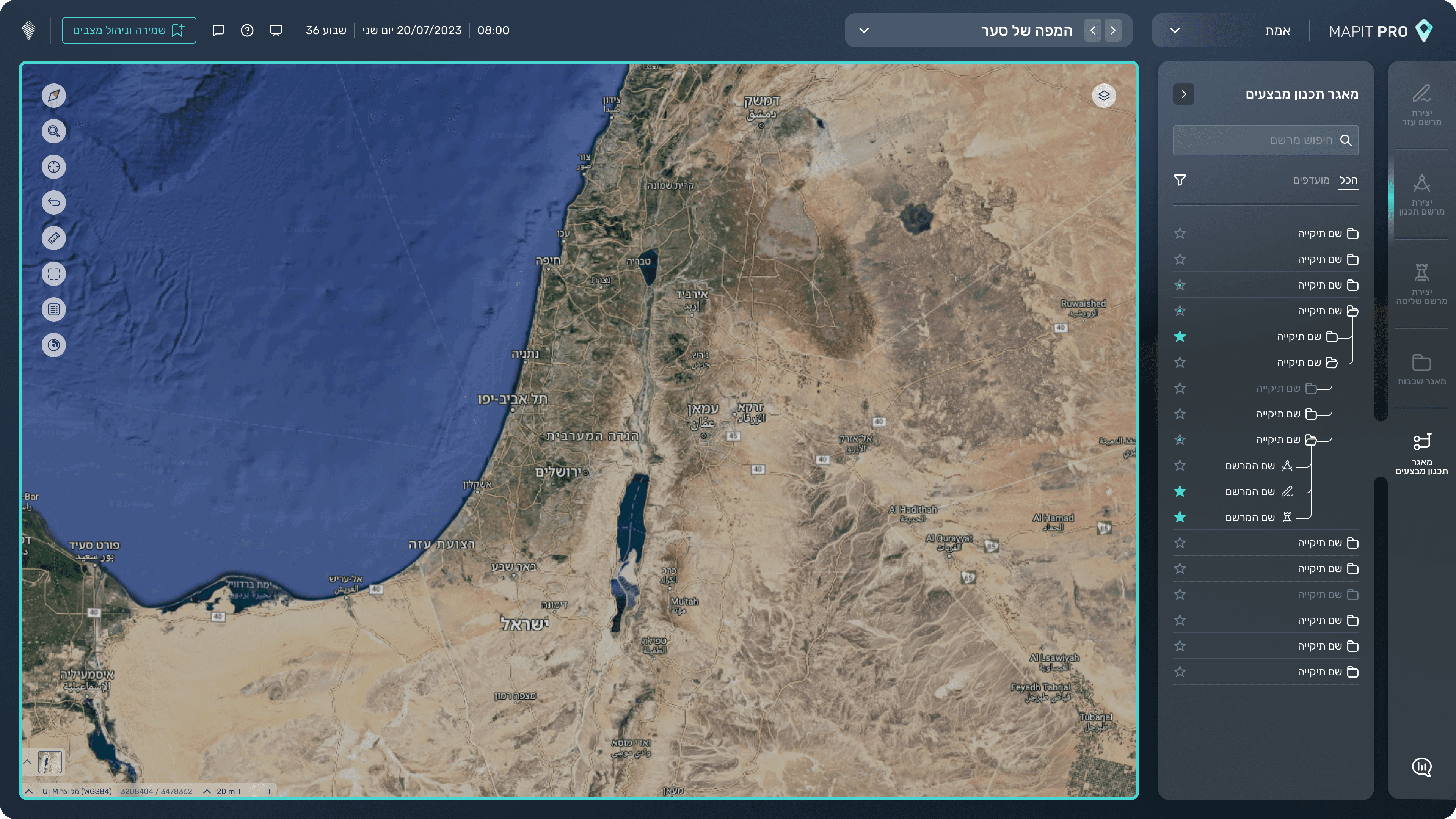
This screen demonstrates a new feature added after production: the Operational Planning. Unlike the initial, simpler layer library, this tab is more complex, with folders that expand into multiple nested subfolders. The main challenge was designing a clear and intuitive structure that displays the hierarchy and connections between layers without overwhelming the user.