About the program
The Challenge
01
Consistency vs. flexibility - keeping design aligned with Mapit Pro improved orientation but limited design freedom
02
Manual approval - critical operations required a manual step, breaking the digital flow.
03
Managing draft and imported plans - Finalized drafts must be manually copied into a main record for approval, a process that feels less intuitive for users.
Key Findings
1. Reliance on Past Plans
Users heavily rely on historical plans and need quick ways to search and filter by time range and context.
2. Sensitive Move to Master Plan
Promoting objects into the main planning repository is high risk and expected to happen only with clear conditions and explicit approval.
3. Side Panel Driven Operations
Most operations run through the side panels, while the map stays visible mainly as the contextual workspace
KPI'S
01
“My Requirements” Tab Adoption
Measures how often users switch from the general repository to "My Requirements", indicating how valuable the personal view is for reducing noise and focusing on relevant items
02
Status Clarity & Transitions
Measures how accurately requirements move between In Planning → Pending Approval → Active → Expired, reflecting how clear and understandable the status model is for users
03
Master Registry Action Clarity
Measures how often users successfully copy objects into the master registry without errors or confusion, and how natural this action feels compared to their existing workflow
04
Sidebar First Operations
Measures the share of key actions performed via the sidebar and their task completion time, to assess whether a sidebar centered layout is more efficient than scattered popups/dialogs
User Research
Audience
Target users
Active military personnel and reserve units in a closed, secure environment.
Profile
Relatively homogeneous workflows, with a broad age range that creates variance in technical proficiency and UI expectations.
Work Environment & Habits
Closed network & strict protocols
Limited exposure to external tools. high emphasis on security, approvals, and auditability.
Legacy interaction patterns
Strong muscle memory around right click, context menus, dense layouts, and multi step flows.
Decision tiers
Senior officials need high level summaries and clear accountability; operators need speed, precision, and traceability.
Operational mindset
Procedure driven, reliability over novelty, minimal onboarding.
Pain Points
Actions are spread between side panels and occasional popups, creating inconsistency.
Some operations feel “hidden” in the sidebar and are not immediately discoverable.
Switching focus between map and sidebar can cause users to lose context.
Long lists and dense content in the sidebar make it harder to scan and act quickly.
Users are not always sure which actions affect the map, the repository, or both.
It’s not always obvious what state each requirement is in, making it hard to understand priority and where attention is needed.
The copy operation doesn’t clearly communicate which objects are being copied and where they will end up in the main registry.
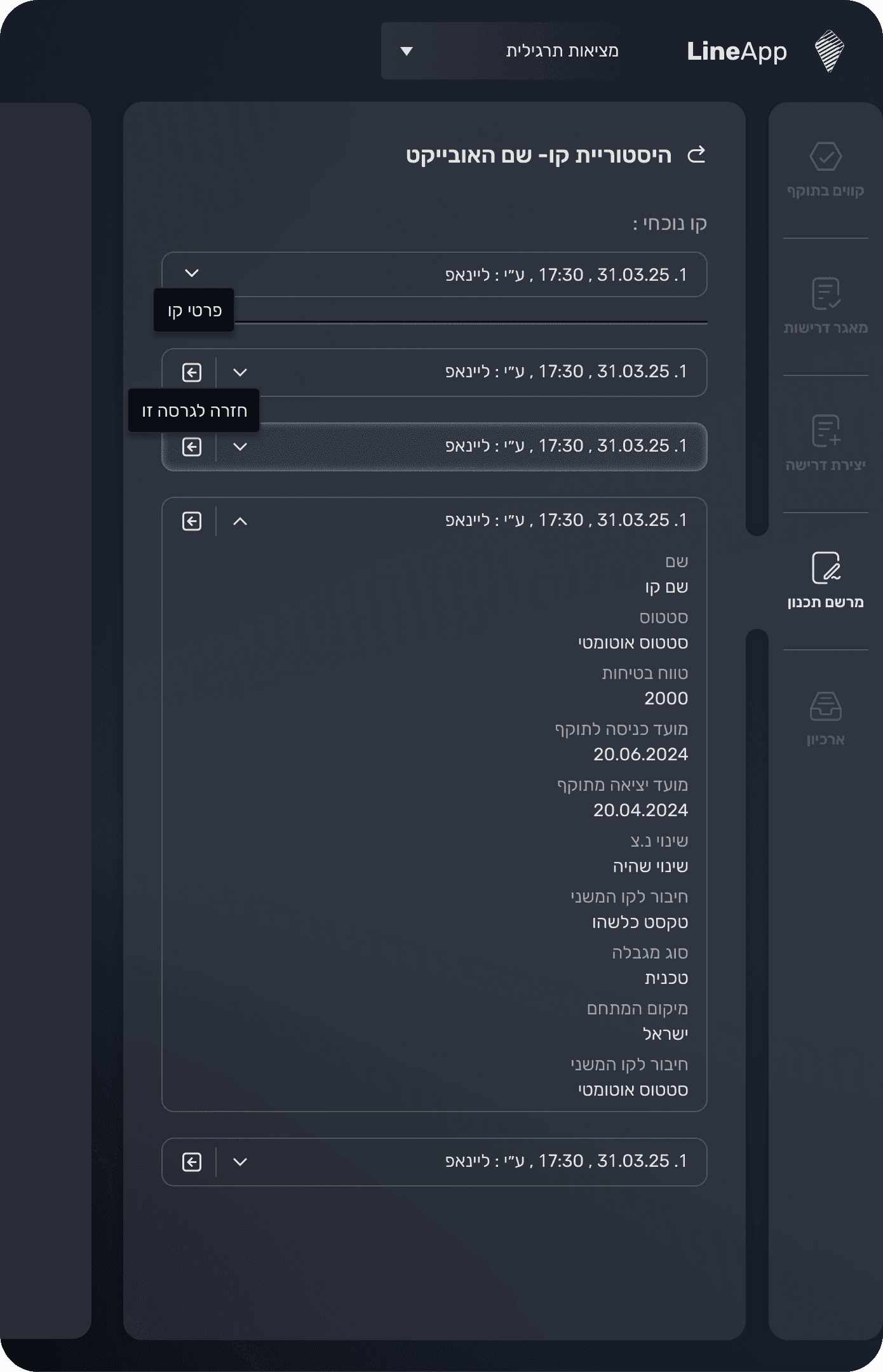
Users can’t easily trace how a line has changed over time or assess its relevance at a specific point in time.
User Journey
Creating a planning request
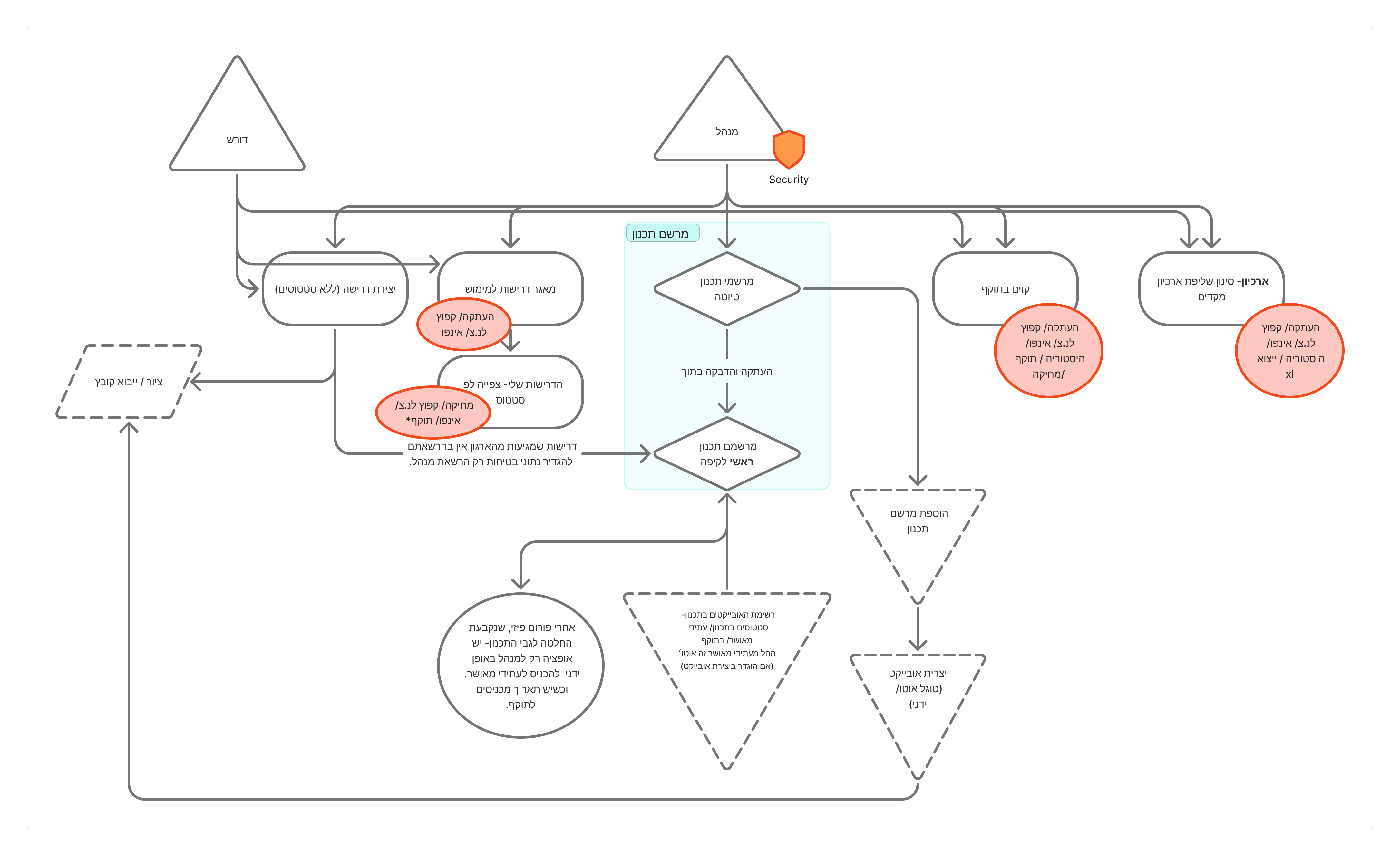
Users can submit a request in two ways: by uploading a file or by drawing directly within the system. Once the drawing is completed, the request is automatically added to the user’s personal planning repository, unless it has matured to the stage of moving into the approval cycle.
The video also highlights the smart sidebar structure designed in Figma, which provided clarity and efficiency when presenting the flow to both Product and Development teams
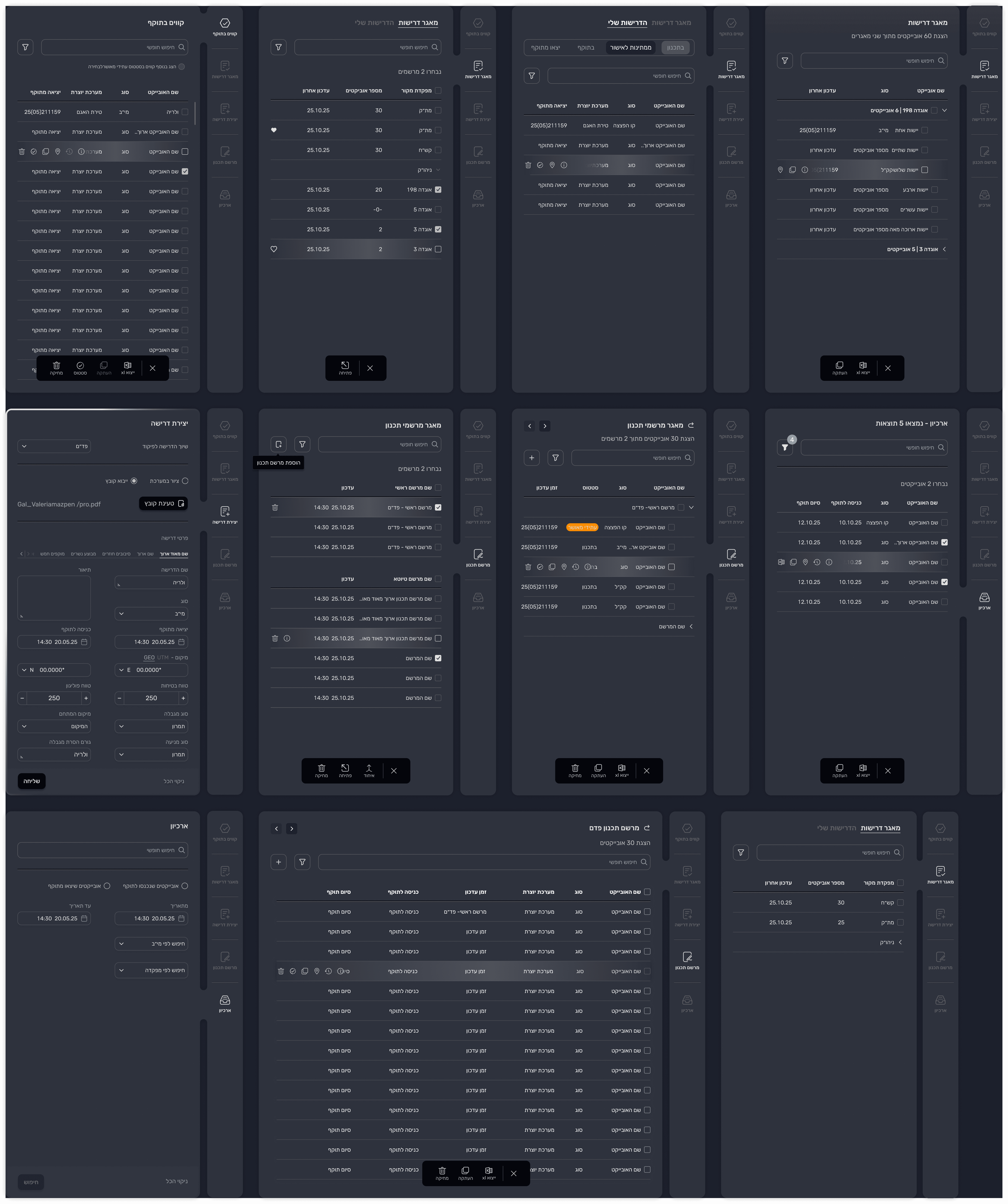
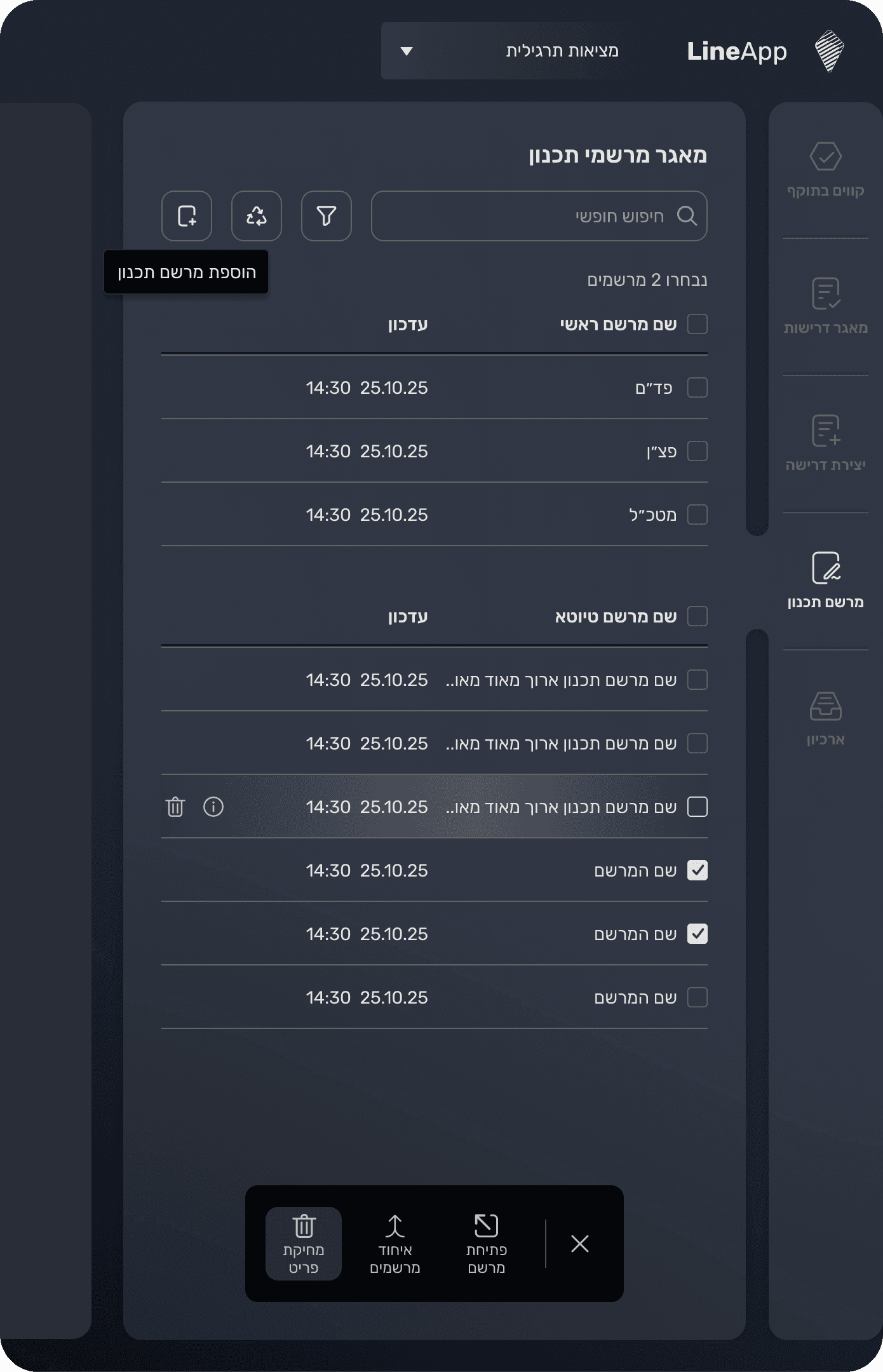
The system is structured around multiple sidebars, each representing a different tab. This approach creates a clear and consistent way for users to navigate between requests, active operations, and the archive.
Active Operations
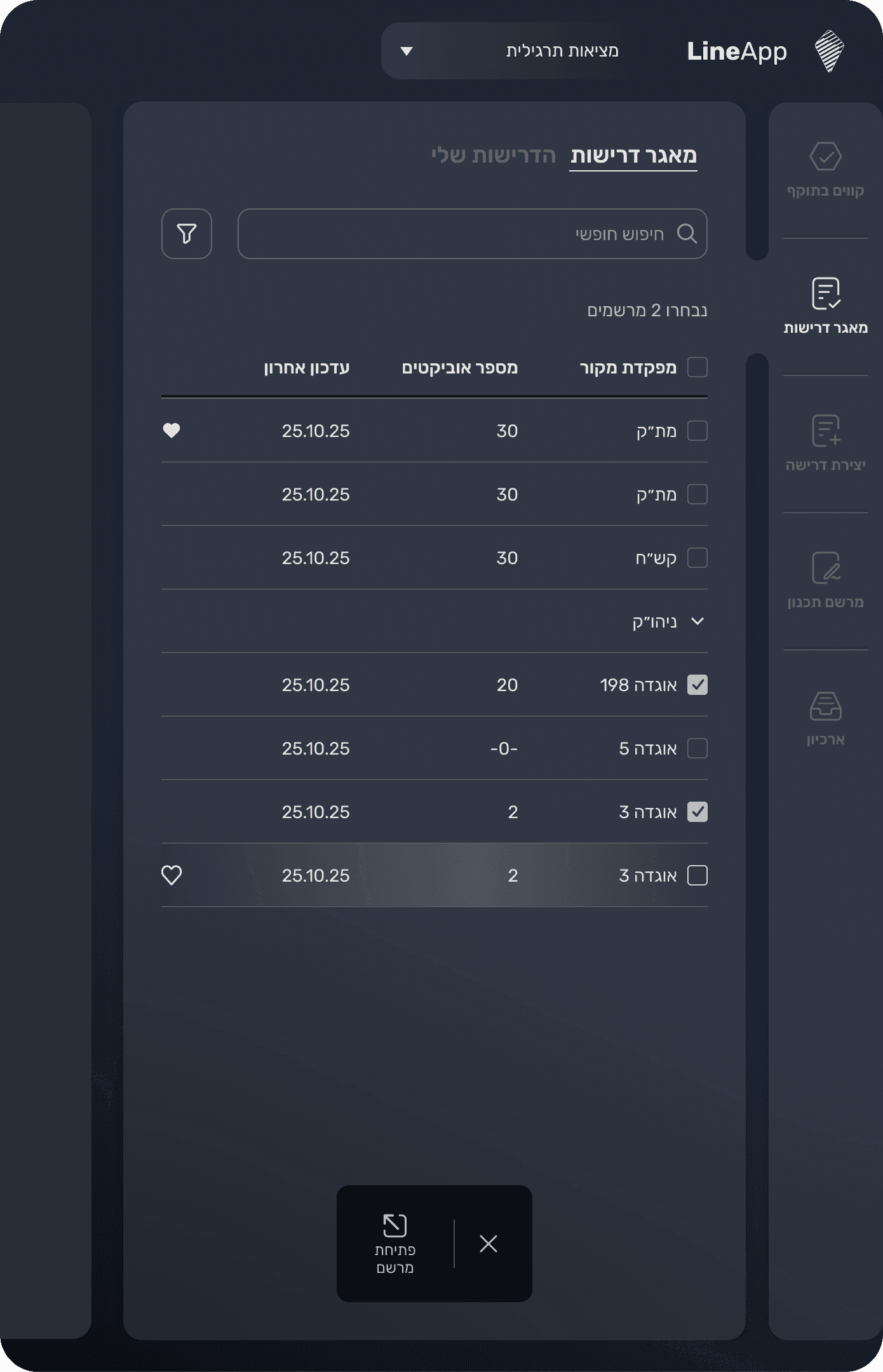
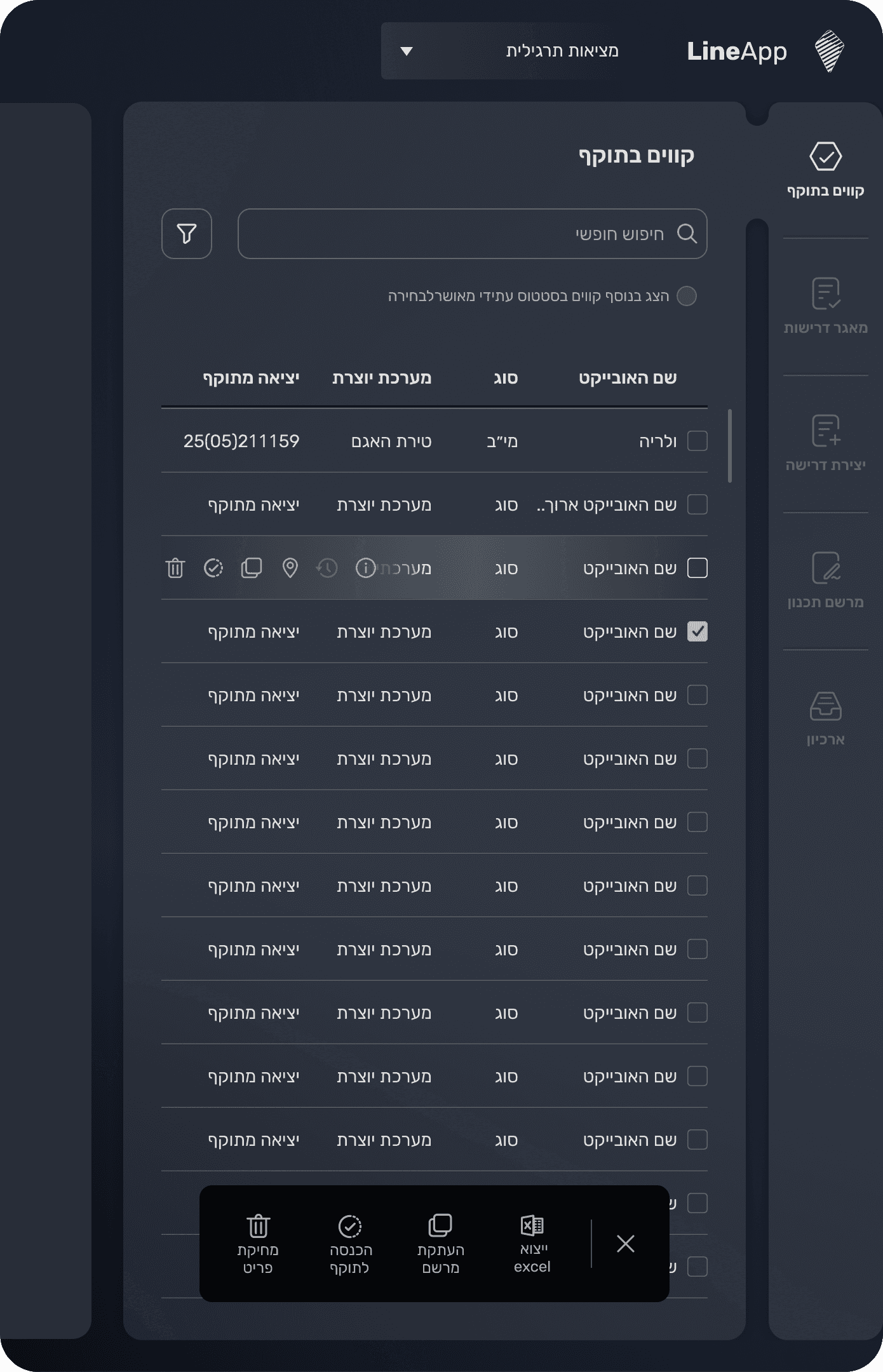
This sidebar provides a structured view of all approved operations. Each operation is displayed in a table with full details, making it easy for users to track and review. In addition, users can perform actions on individual items or apply bulk actions when selecting multiple operations.
My Requests
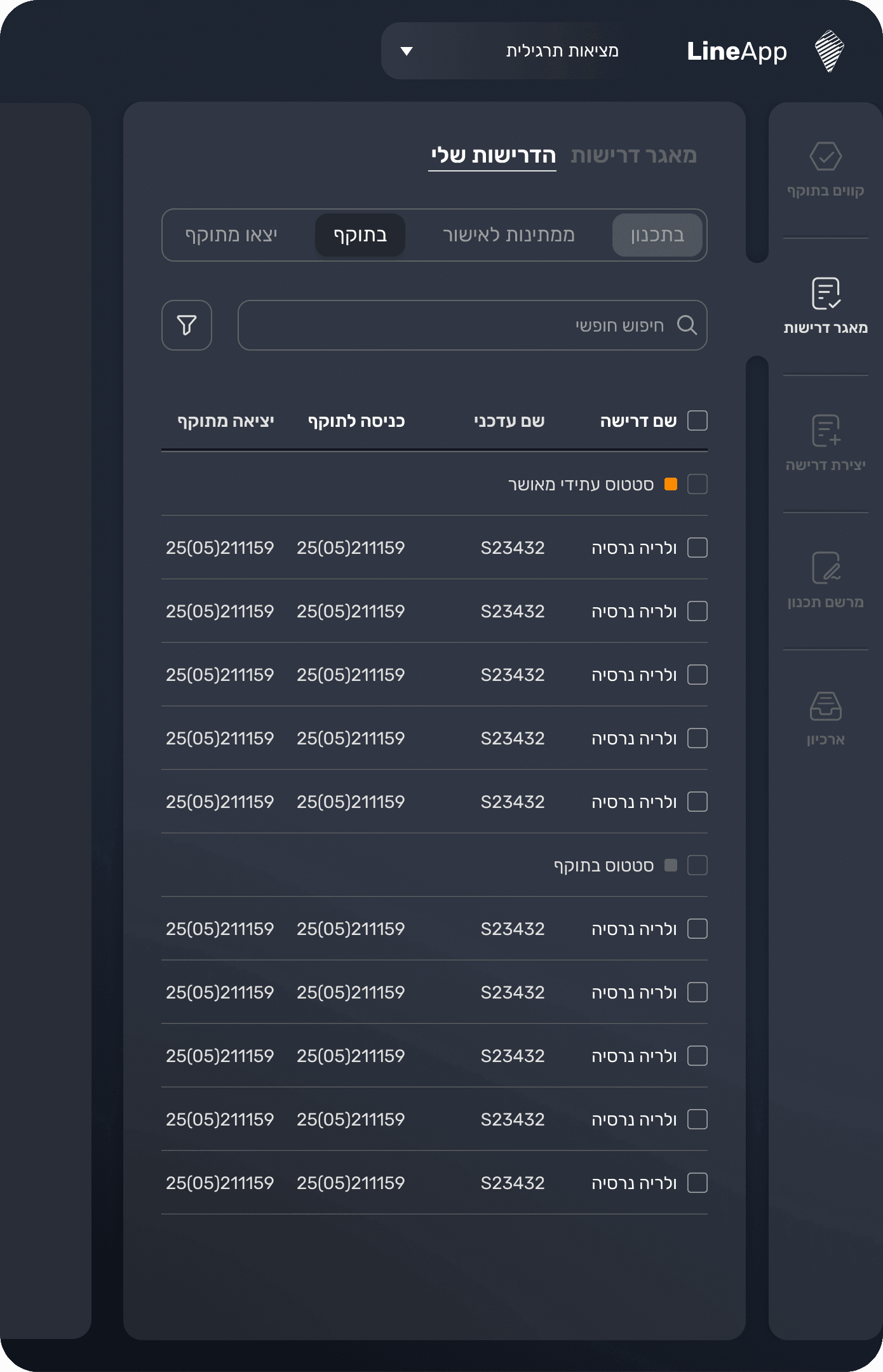
This panel provides a hierarchical view of the user’s personal requests. Initially, all favorites were displayed together, but user testing revealed the need for more structure. We introduced tabs for In Planning, Pending Approval, Active, and Expired, allowing users to manage and track their requests more effectively.
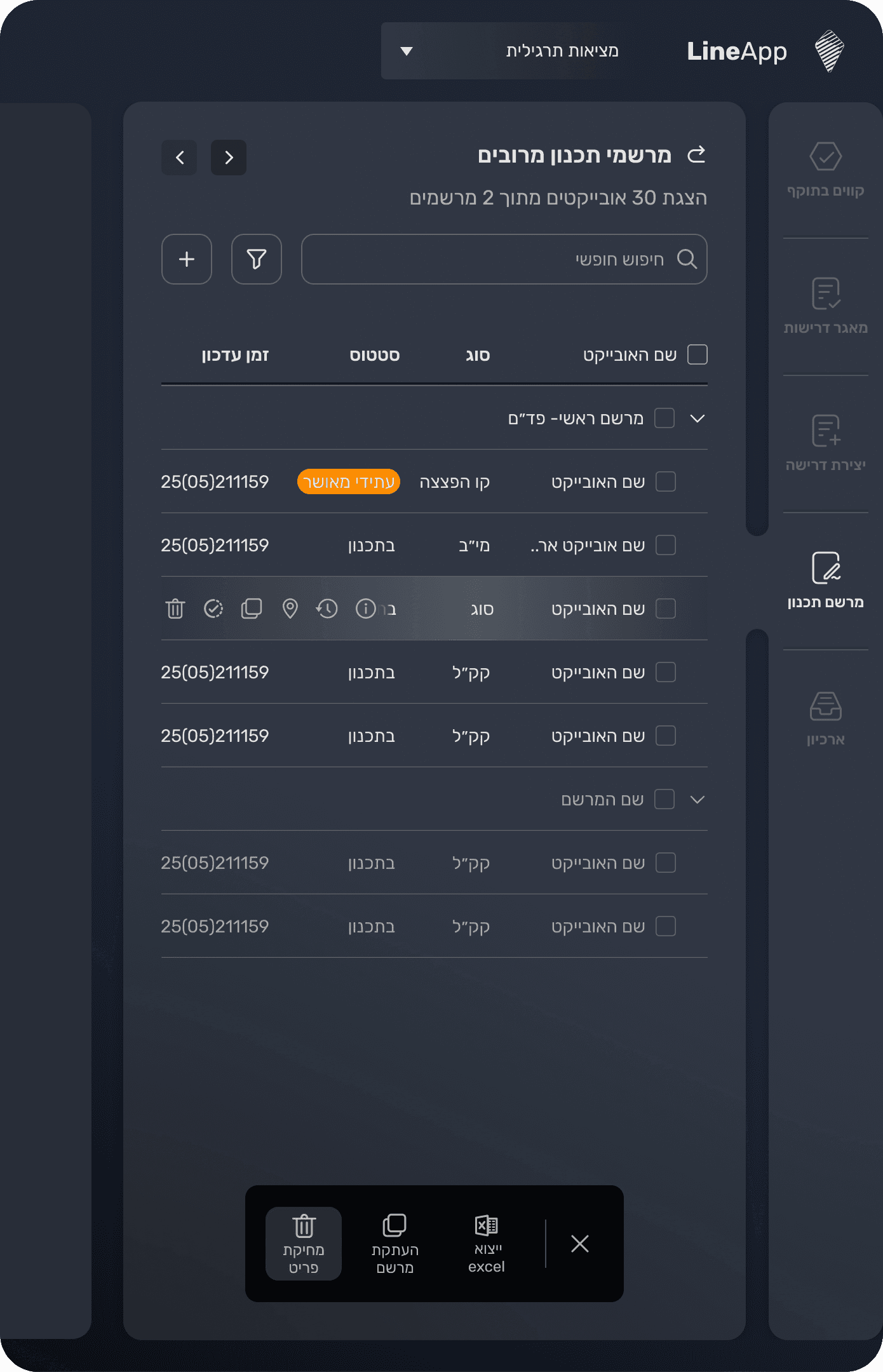
Multiple Registries
This panel enables users to open several registries simultaneously, view their entities in detail, and create new individual entities within them.
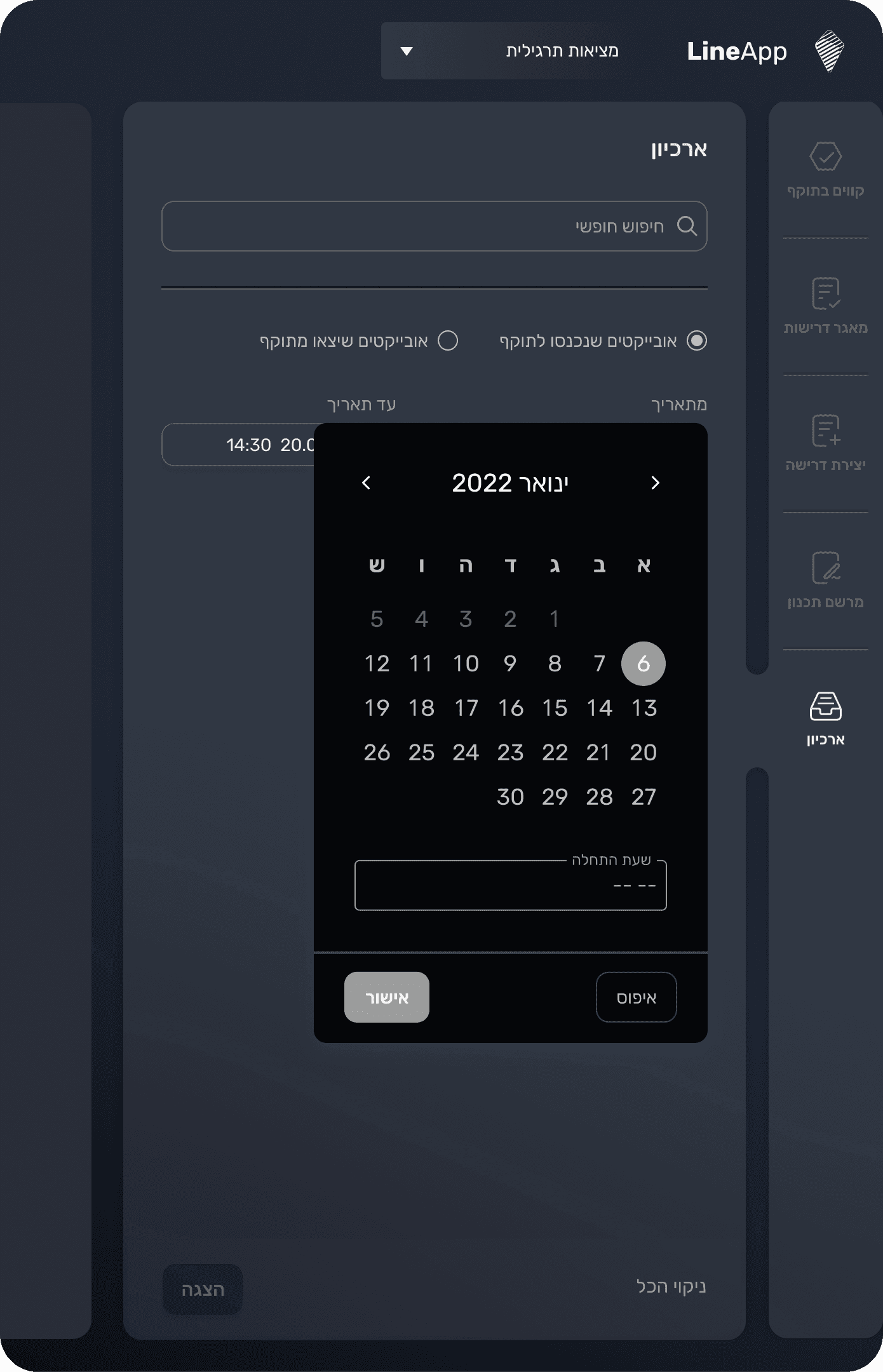
Archive
To streamline search, the user first selects a date range; only then are the relevant results displayed
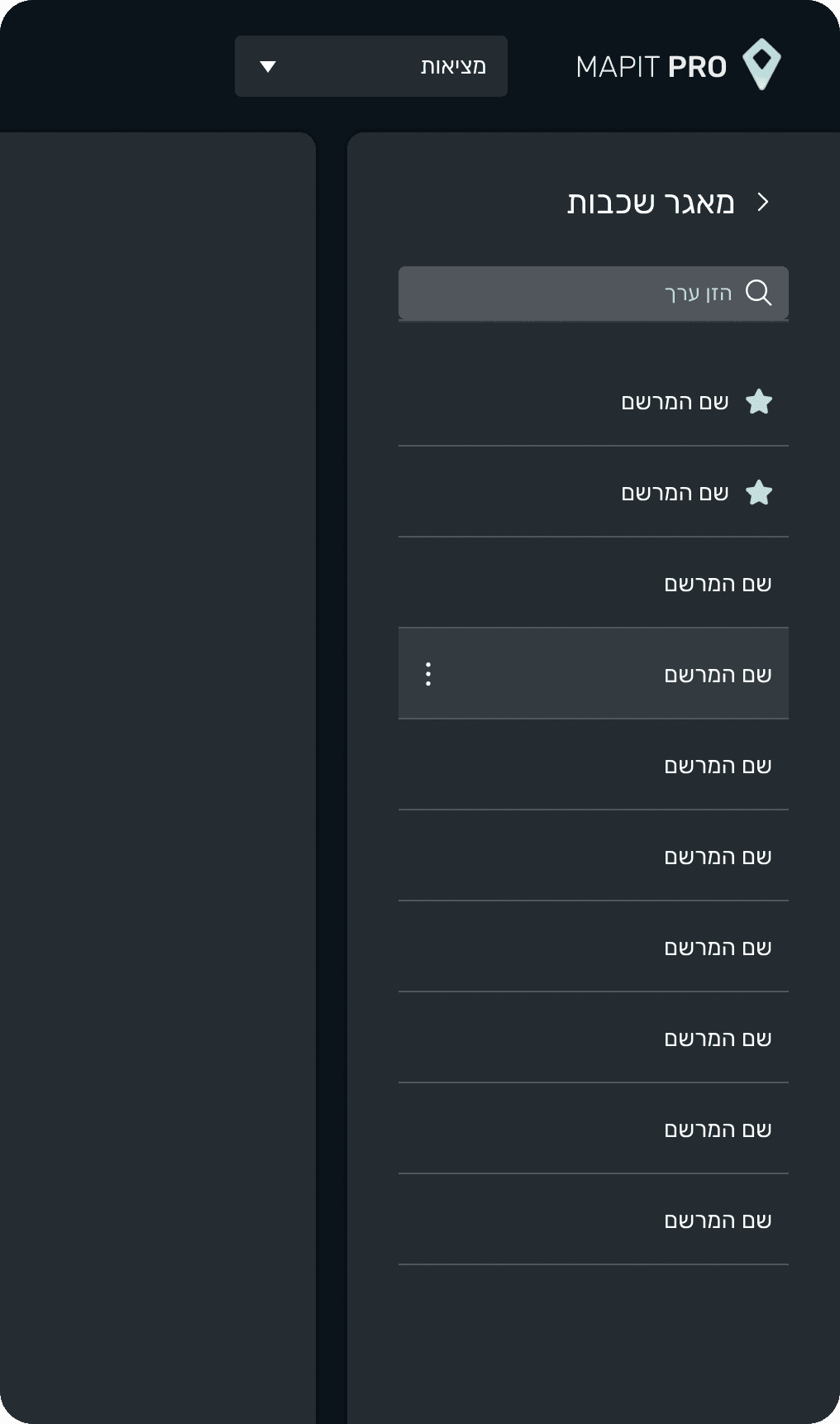
Planning Registry
The prototype simulates copying selected objects and pasting them into a master registry only when predefined conditions are met and the action is approved. The workflow is intentionally manual and operator controlled due to the operational sensitivity it represents, similar to forwarding a message to multiple recipients in WhatsApp, where the user explicitly selects targets and confirms before sending.
Interaction highlights
This screen demonstrates several key behaviors in the system: the search function within the sidebar, a visual cue on the map indicating changes made to a specific object, and a pop up panel displaying the detailed information of that object.
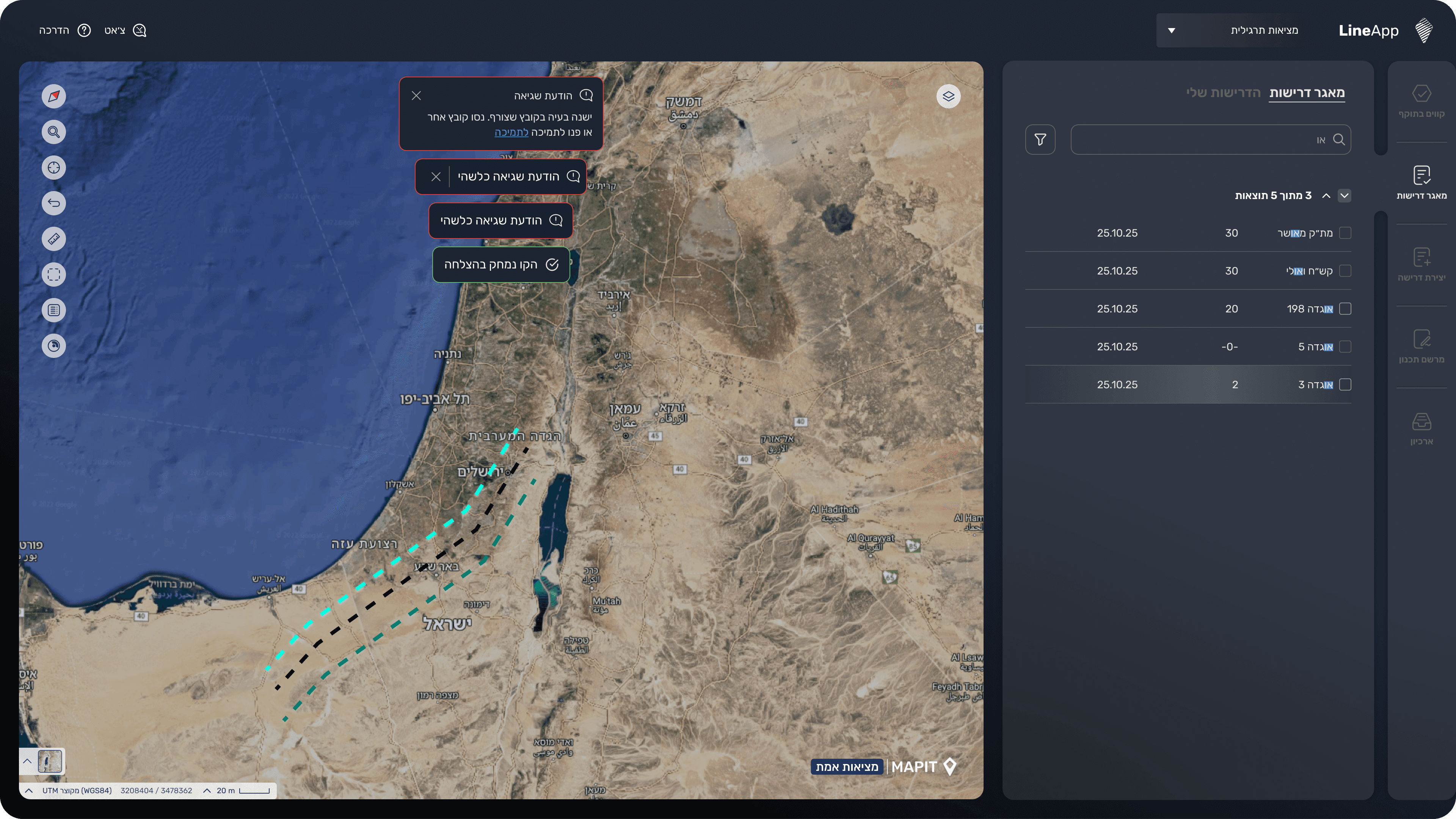
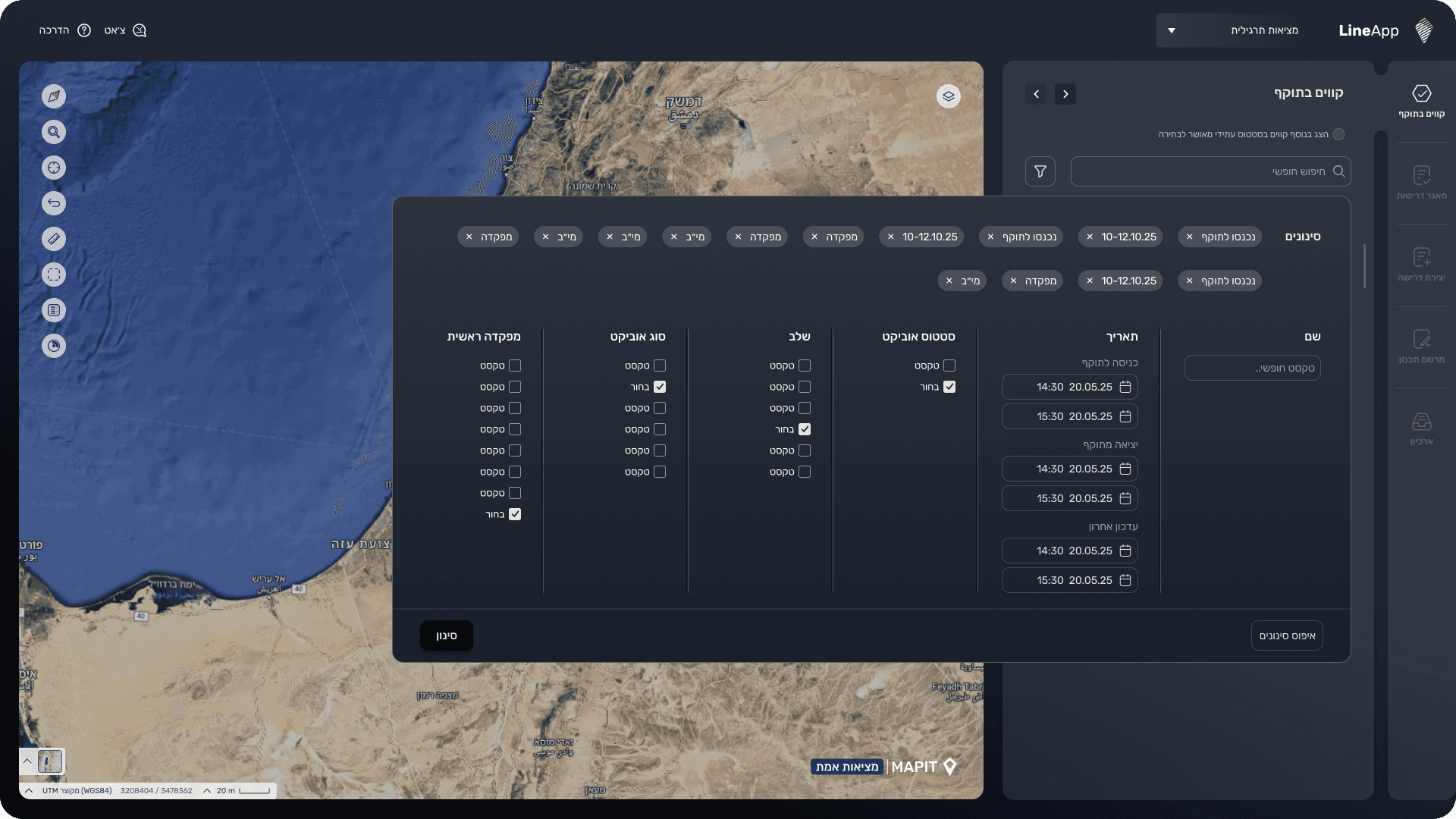
Filters
This screen demonstrates several key behaviors in the system: the search function within the sidebar, a visual cue on the map indicating changes made to a specific object, and a pop up panel displaying the detailed information of that object.